
Lattice Sandboxes
Lattice Sandboxes is a secure, isolated platform for creating environments with simulated data to develop and test your Lattice SDK app. Apps developed on Sandboxes are portable and can be used in other Lattice deployments based on your environment requirements.
Lattice Sandboxes environments are provided free of charge. You can make an unlimited number of free API calls to your environment to create, stream, and task entities in Lattice.
Before you begin
- If you don’t have access to Lattice Sandboxes, request to join the Lattice SDK developer program.
Sign in
Anduril uses Okta to authenticate access to Lattice Sandboxes. Multi-factor authentication (MFA) is satisfied with a passkey, such as a browser passkey, operating system biometrics, or a physical FIDO/UBI security key.
Use Chrome or a Chromium-based browser, such as Microsoft Edge or Brave, to access the Lattice Sandboxes developer portal. Firefox is not supported and will prevent you from completing the sign-in procedure.
If this is your first time signing in, activate your Okta account and register a passkey:
Next to Security Key or Biometric Authenticator, choose Set up, then register one of the following passkey options:
- Browser passkey: Stored by your browser’s password manager so that you can sign in from any device signed in to the same browser profile.
- Operating system biometrics: Uses Touch ID, Face ID, Windows Hello, or another built-in platform authenticator bound to the current device.
- Physical FIDO or UBI key: Uses a hardware token such as a YubiKey, which you can carry with you between devices.
To sign in after activation, do the following:
To manage your passkeys and password, visit https://login.developer.anduril.com/account-settings/home.
If you lose access to your passkey, reach out to lattice-developers@anduril.com for assistance.
After logging in, the dashboard displays all existing environments associated with your account and the status of each environment.
Create an environment
To create a new environment, open the Environment Catalog, then do the following:
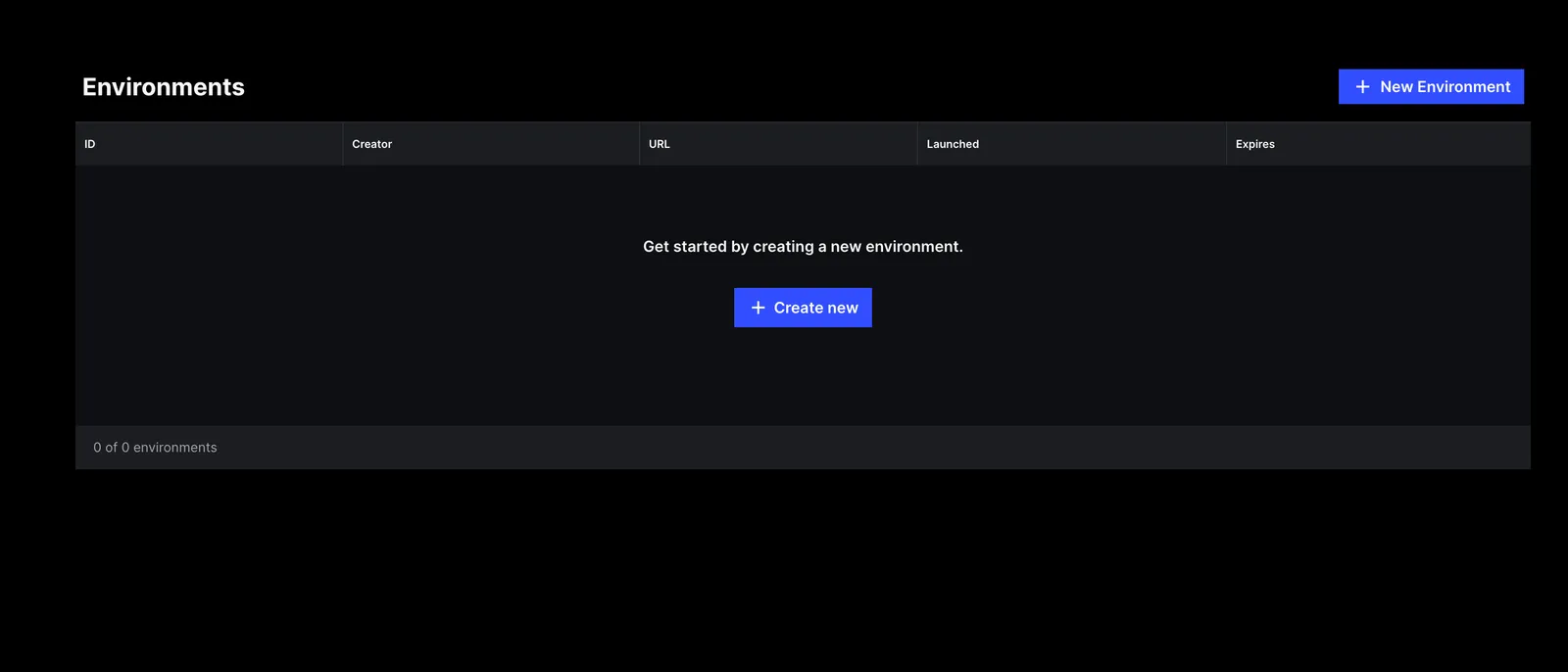
On the Environment Catalog page, choose Lattice and click Create. You’ll be redirected to the environment creation details page, where you see the status of your environment:
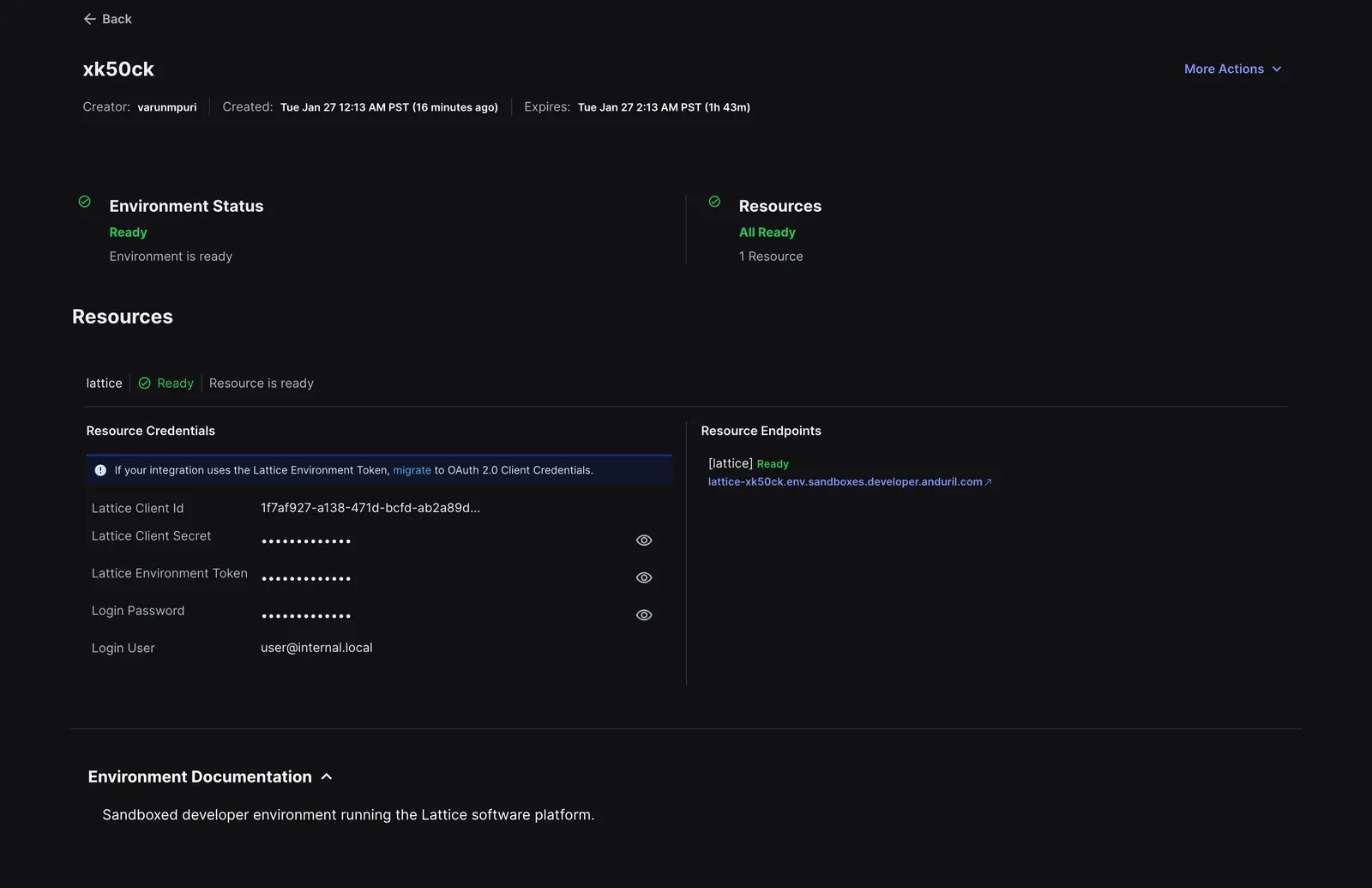
Once the state changes to Ready, review the following details:
Use this to launch the Lattice UI or connect to Lattice programmatically.
Use the client ID to authorize your integration with the Lattice SDK.
Use the client secret to authenticate your integration with the Lattice SDK.
The user name you use to log in to the Lattice UI.
The password you use to log in to the Lattice UI.
This is your environment token. Save this token in addition to the Sandboxes token, to authenticate your requests with the Lattice API.
- Create up to 2 concurrent environments in Sandboxes.
- Environments have a maximum lifetime of 12 hours.
- Environments have a maximum idle lifetime of 2 hours. You must make a network call, or sign in to the Lattice UI to keep your environment active.
- Access tokens obtained using client credentials have a lifetime of 30 minutes.
Set up credentials
To query your Sandboxes environment, you will need:
- Sandboxes token (
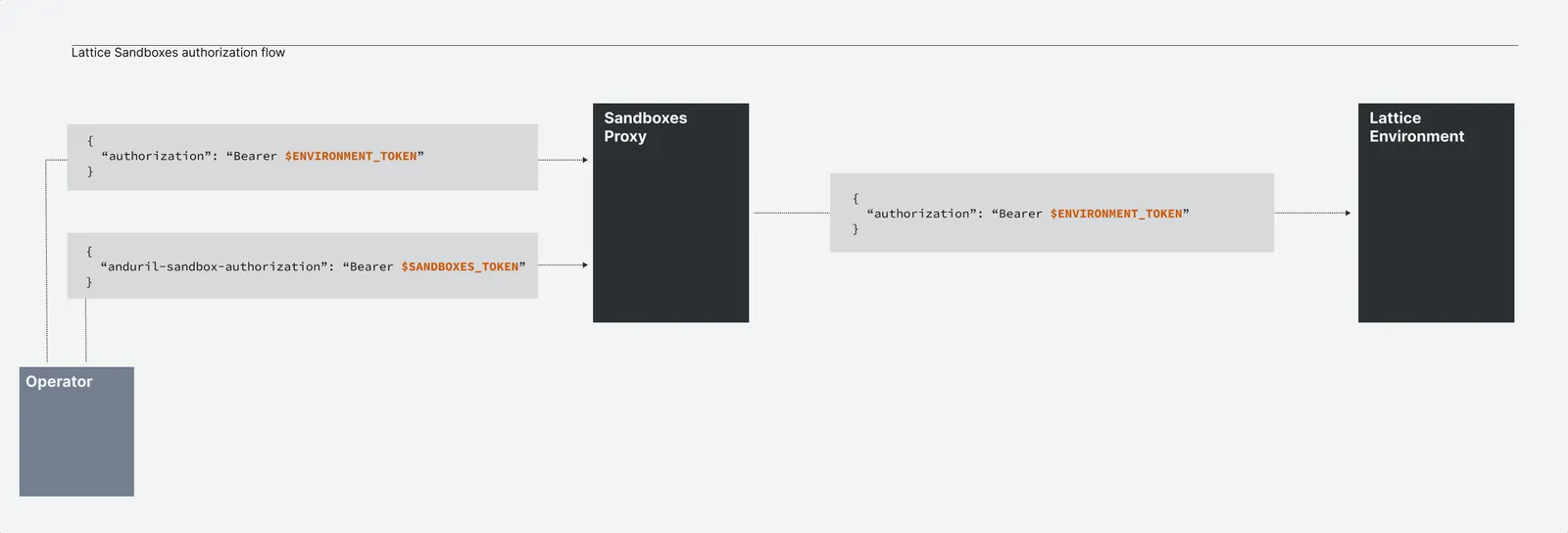
anduril-sandbox-authorizationheader) — This is your account-level authorization token, because the Sandboxes Proxy uses it to verify your account before forwarding requests to your environment. Create this token once, then use it to access all of your environments. - Environment token (
authorizationheader) — This is the long-lived, static bearer token your integration uses to authenticate with the environment, because it lets you call Lattice directly without a token exchange. Your environment token is the Lattice Auth Token shown on the environment details page after creating a new environment.
If you use OAuth 2.0 client credentials instead of an environment token, you also need your Lattice Client ID and Lattice Client Secret, because your integration exchanges them for a short-lived access token. Both are automatically generated when creating a new environment.
Your Sandboxes token and an environment credential — an environment token, or a Client ID and Secret — are required at runtime to interact with Lattice Sandboxes. The Sandboxes Proxy verifies your Sandboxes token, then forwards the request to your environment.
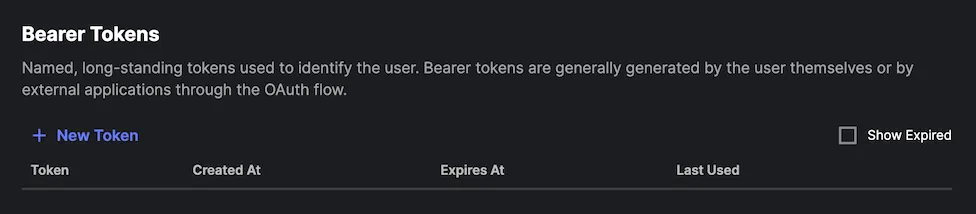
To create a new Sandboxes token, do the following:
To authenticate API requests to your Sandboxes environment, choose an authentication method:
Environment token
Client credentials
Use the Lattice Auth Token from your environment details page as a long-lived, static bearer token. Export it as an environment variable:
Pass the token in the Authorization header to interact with Lattice:
The environment token is long-lived but eventually expires. Rotate the token before it expires to avoid interrupting your integration.
What’s next?
- Test your new environment by running the Quickstart guide.
- Install the Lattice SDK for a protocol and language of your choice to get started developing with Lattice.